Patch Plants App

Presently accessible through a desktop, tablet and mobile optimised site, this case study imagines an interface and features of an app for iOS. Patch helps you discover the best plants for your space, delivers them to your door and helps you look after them.

About

With every project it is important to base design decisions on research and evidence. 

As this case study looks at a conceptual User Interface, including many elements of the existing mobile website, we will instead touch on basic facts and stats that inform user needs and an approach to design.

Stats
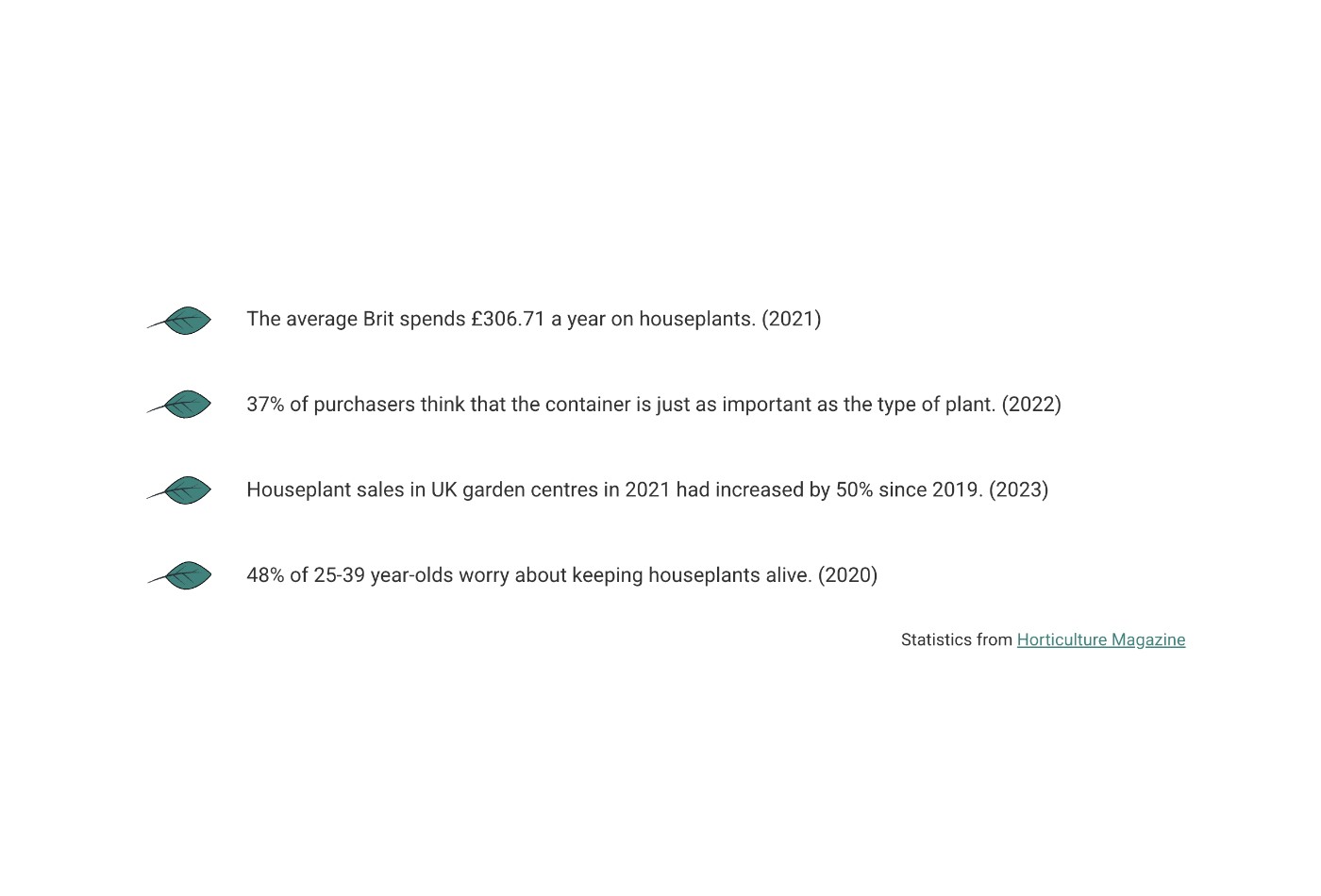
4 key facts: The average Brit spends £306.71 a year on houseplants. (2021)

37% of purchasers think that the container is just as important as the type of plant. (2022)

Houseplant sales in UK garden centres in 2021 had increased by 50% since 2019. (2023)

48% of 25-39 year-olds worry about keeping houseplants alive. (2020)
4 key facts: The average Brit spends £306.71 a year on houseplants. (2021)

37% of purchasers think that the container is just as important as the type of plant. (2022)

Houseplant sales in UK garden centres in 2021 had increased by 50% since 2019. (2023)

48% of 25-39 year-olds worry about keeping houseplants alive. (2020)
4 key facts: The average Brit spends £306.71 a year on houseplants. (2021)

37% of purchasers think that the container is just as important as the type of plant. (2022)

Houseplant sales in UK garden centres in 2021 had increased by 50% since 2019. (2023)

48% of 25-39 year-olds worry about keeping houseplants alive. (2020)

As a designer I contribute to research efforts through planning and facilitation, this could show up as contextual studies, user interviews and usability tests before starting any design. These stats from Horticulture Magazine show a basis for Patch Plant's need in the market - a way to differentiate themselves from competition is to support customers with after care.

User Stories

Five user story cards displayed in a horizontal row on a beige background. Each card follows the format "As a customer, I need/want [action] so that [outcome]." The five stories are: "As a customer, I need to find information on how to best care for my plants so that I can keep them healthy." "As a customer, I need to know how much care a specific plant needs so that I'm sure it's right for me." "As a customer, I need to know if a plant is safe around my pets and children so that they are safe." "As a customer, I want to search by room so that I can find the right plant for my home." "As a customer, I want to be able to get help when I need it so that I can prevent my plants from dying."

User stories are a simple way to keep the focus on what customers actually need rather than jumping straight to features. By framing everything from the customer's perspective, they help me tie design decisions back to real motivations and outcomes. For this case study, I'm using them to connect the bigger strategic insight (that aftercare is an underserved gap in the market) to the specific functionality the app would need. They also make the reasoning easy to follow for anyone reading the case study: each story is a small argument for why a feature should exist and what it's trying to achieve.

User Flow Diagram
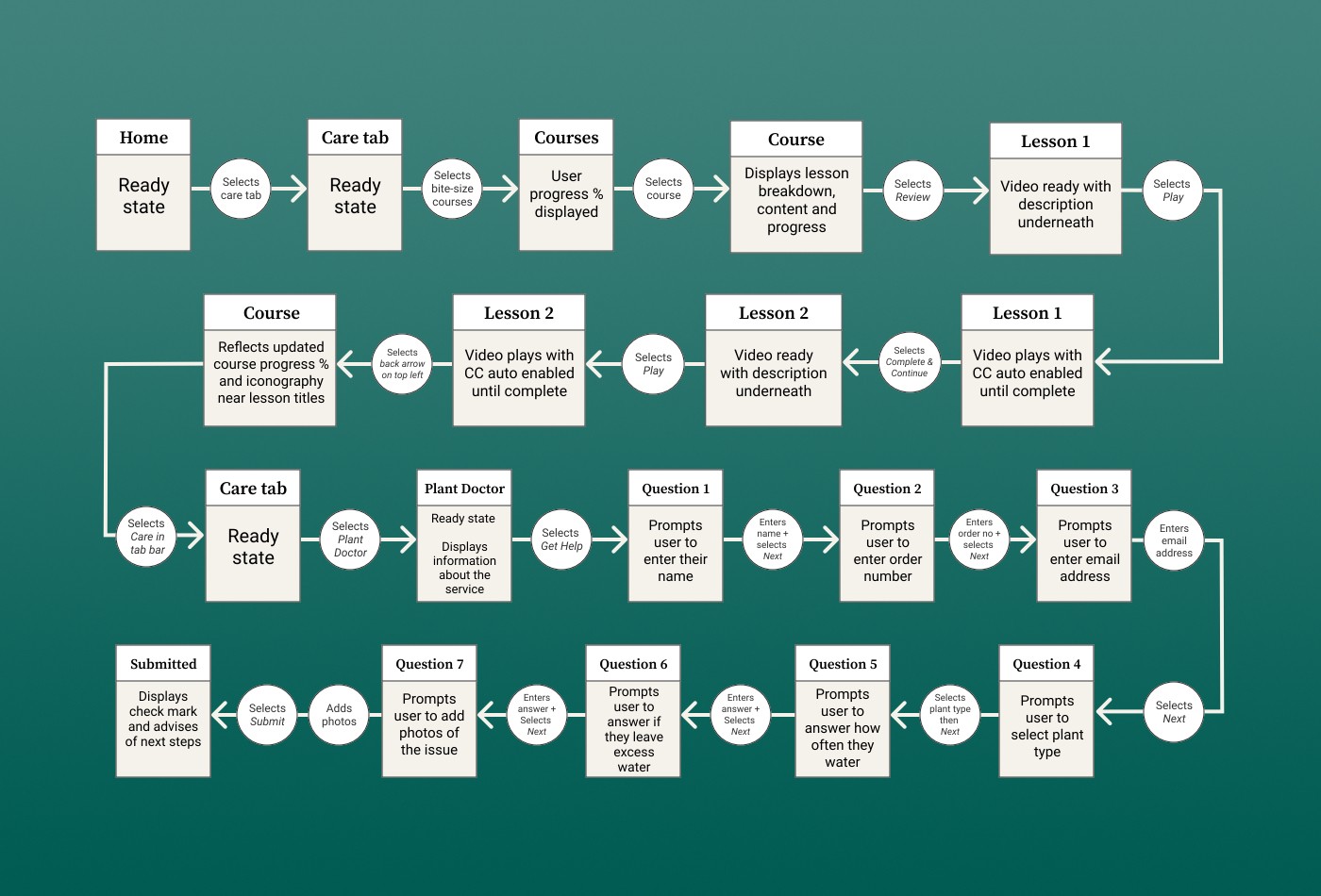
User flow diagram on a dark teal background showing the paths through the app's Care tab. The flow splits into two main journeys. The first covers bite-sized video courses: from the Home screen, users select the Care tab, then choose bite-sized courses, which displays their progress percentage. Selecting a course shows a lesson breakdown with content and progress, then users can review or play individual lessons. Video lessons play with auto-enabled closed captions, and users can mark them complete and continue to the next lesson. The course screen reflects updated progress with iconography near lesson titles. The second journey covers the Plant Doctor feature: from the Care tab, users select Plant Doctor, which displays information about the service. Selecting Get Help launches a questionnaire flow where users enter their name, order number, and email address, then select their plant type, answer how often they water, whether they leave excess water, and add photos of the issue. After submitting, a confirmation screen displays a check mark and advises on next steps.

This user flow diagram maps out the key path a user would take through the Care tab of the app. It covers two main journeys: working through short video courses to build plant care knowledge, and using the Plant Doctor feature to get help when something goes wrong.

By plotting out each step such as selecting a course and tracking progress, to submitting a help request with photos, I can see how the interface needs to behave at each stage and where users might get stuck. It's a useful tool for thinking through the logic before moving into higher-fidelity design and helps me make sure the experience actually supports the user stories identified earlier.

Wireframes
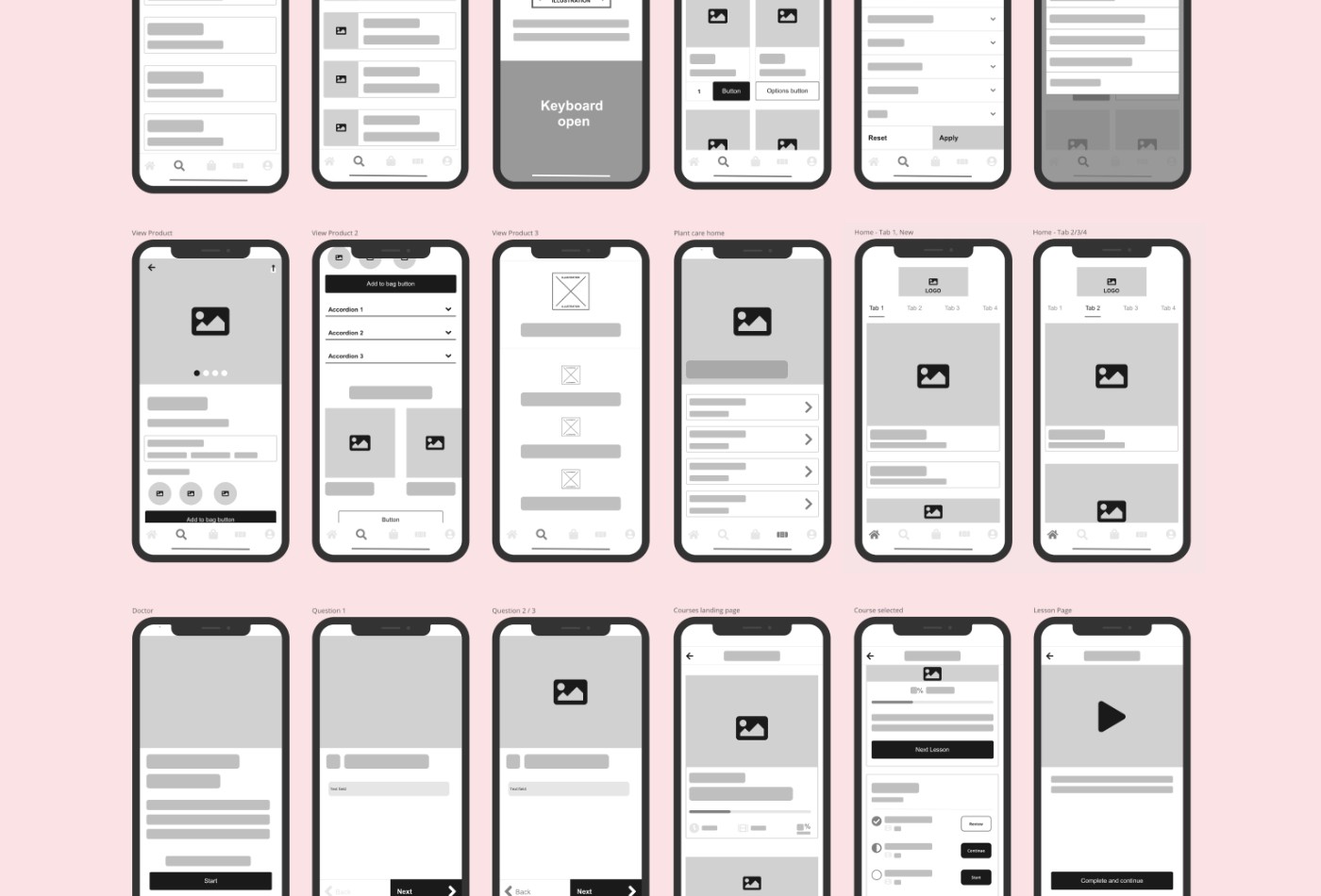
Grid of eighteen low-fidelity wireframe screens for an iOS app on a light pink background. The top row shows search and filter interfaces: a list view with search bar, a similar screen with an illustration placeholder, a screen indicating keyboard open state, a product card with quantity selector and button options, and a filter panel with reset and apply buttons. The middle row covers product and home screens: a product detail page with image carousel, description text, and add to bag button; a second product view with accordions for expandable content; a third product variation with image placeholders; a plant care home screen with image and list items with chevrons; and two home tab layouts showing a logo, tab bar with four tabs, and card-based content areas. The bottom row shows the Plant Doctor and courses flows: a Doctor landing screen with a Start button; two question screens with text input fields and Next buttons with back navigation; a courses landing page with a large image, descriptive text, and a list of lessons with progress indicators and action buttons; a course selected screen showing a progress bar, Next Lesson button, and lesson list with Review, Continue, and Start options; and a lesson page with a large play button and Complete and continue button at the bottom.

These low-fidelity wireframes let me quickly explore layout and structure without getting distracted by visual details.

They cover the core screens across the app including product pages, the home and care tabs, the Plant Doctor questionnaire flow, and the courses section. This allows me to can see how content and navigation might work at a basic level.

Working at this fidelity makes it easy to test ideas and make changes before investing time in polished designs. It also helps communicate the concept clearly to others as the focus stays on how the app is organised and how users will move through it rather than typography or colour choices.

Branding
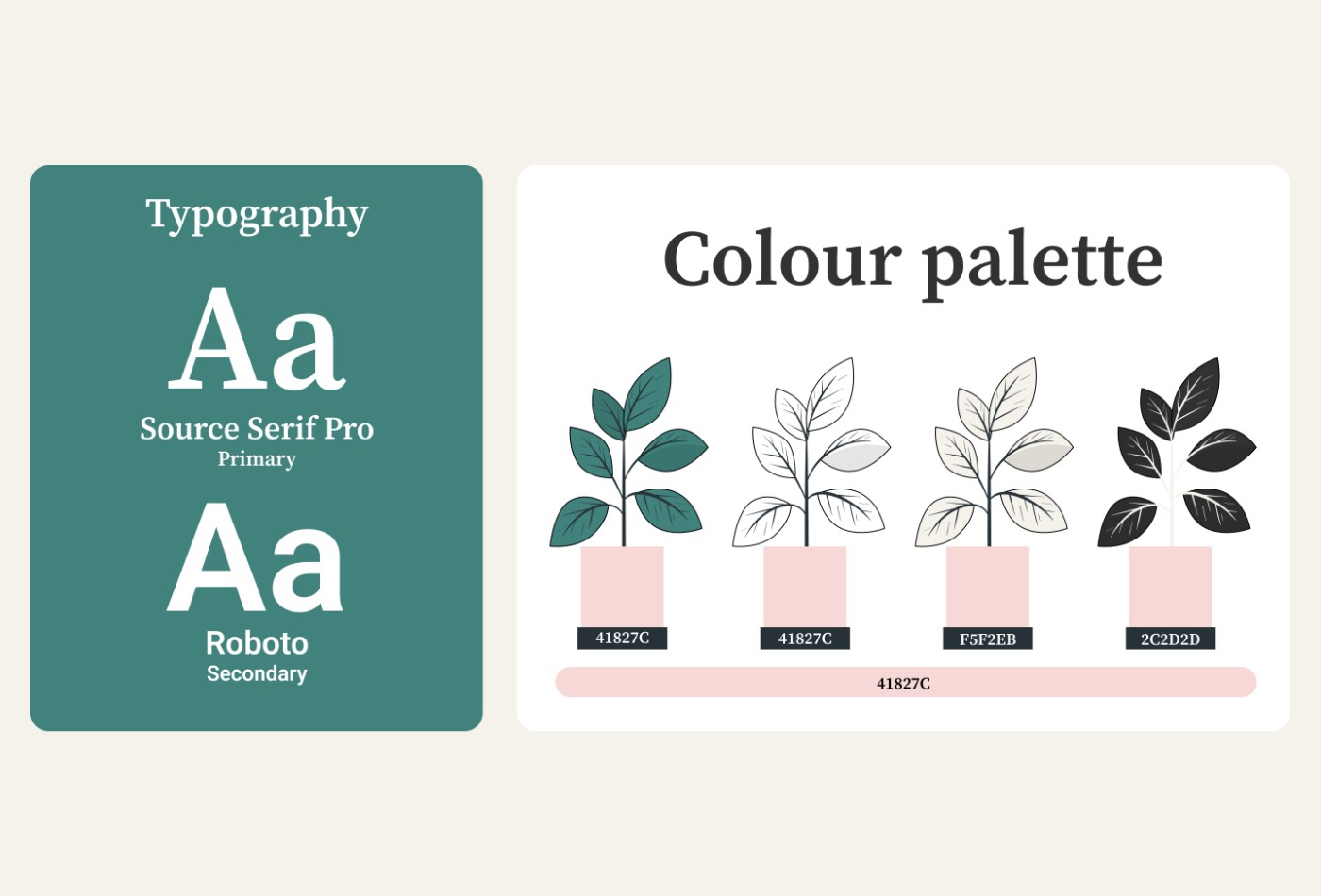
Typography and colour palette reference on a beige background, split into two panels. The left panel has a teal background and shows the typography choices: Source Serif Pro as the primary typeface and Roboto as the secondary, each demonstrated with uppercase and lowercase letter A samples. The right panel has a white background and displays the colour palette using four illustrated plant sprigs in pots, each representing a different colour: teal green (hex 41827C), a second teal green (hex 41827C), a warm off-white (hex F5F2EB), and a dark charcoal (hex 2C2D2D). A horizontal teal bar below shows the primary brand colour with its hex code 41827C.

I've stuck closely to Patch's existing brand identity to make sure the app feels like a natural extension of their website and social channels.

The typography pairs Source Serif Pro as the primary typeface and Roboto as the secondary. The aim of this is to give headings a slightly editorial feel while keeping body text clean and readable. The colour palette draws on their signature green alongside soft neutrals and a darker charcoal colour to keep things fresh.

Carrying these choices through to the high-fidelity wireframes helps show how the concept would look and feel, making it easier to imagine as a finished product ready to serve users.
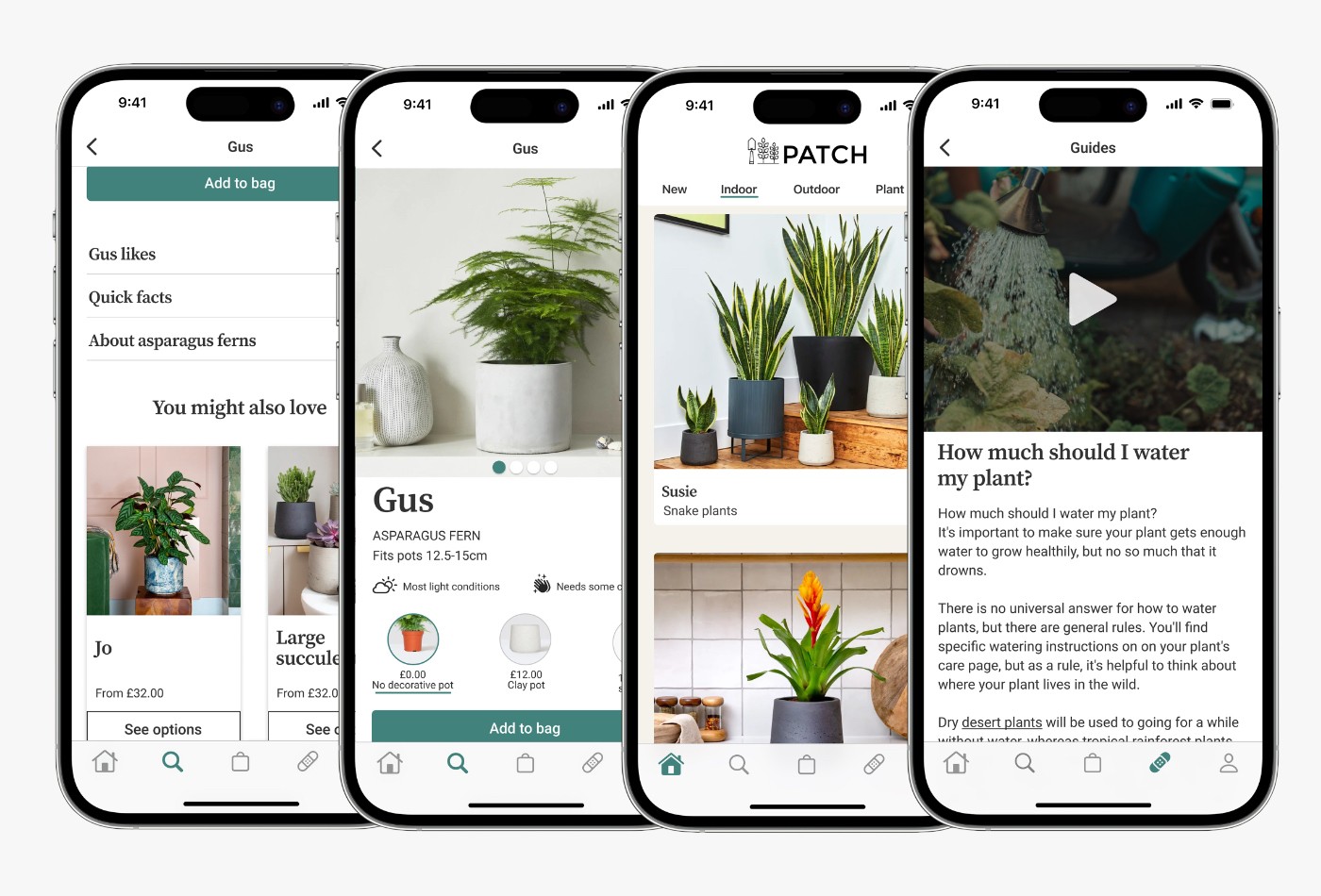
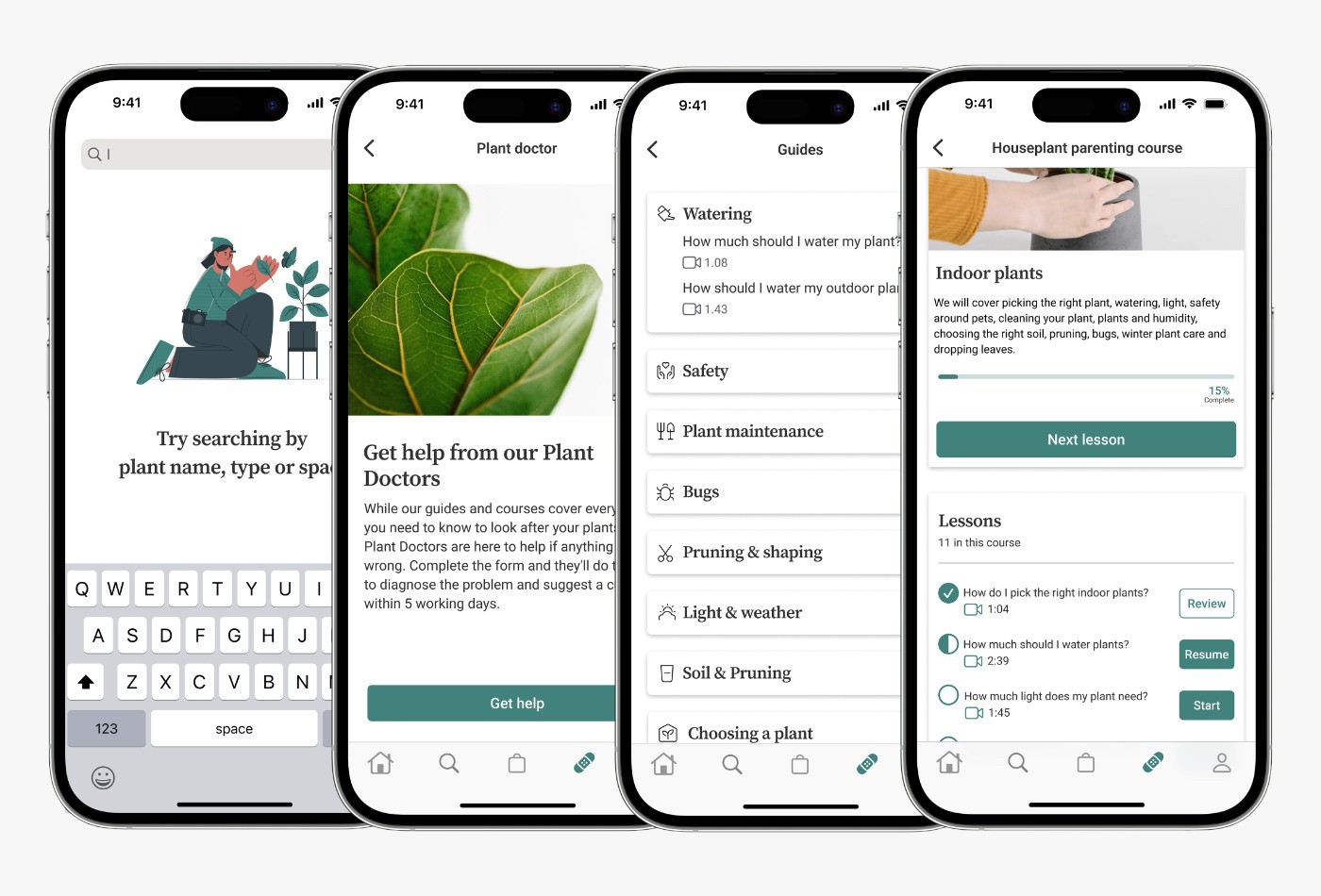
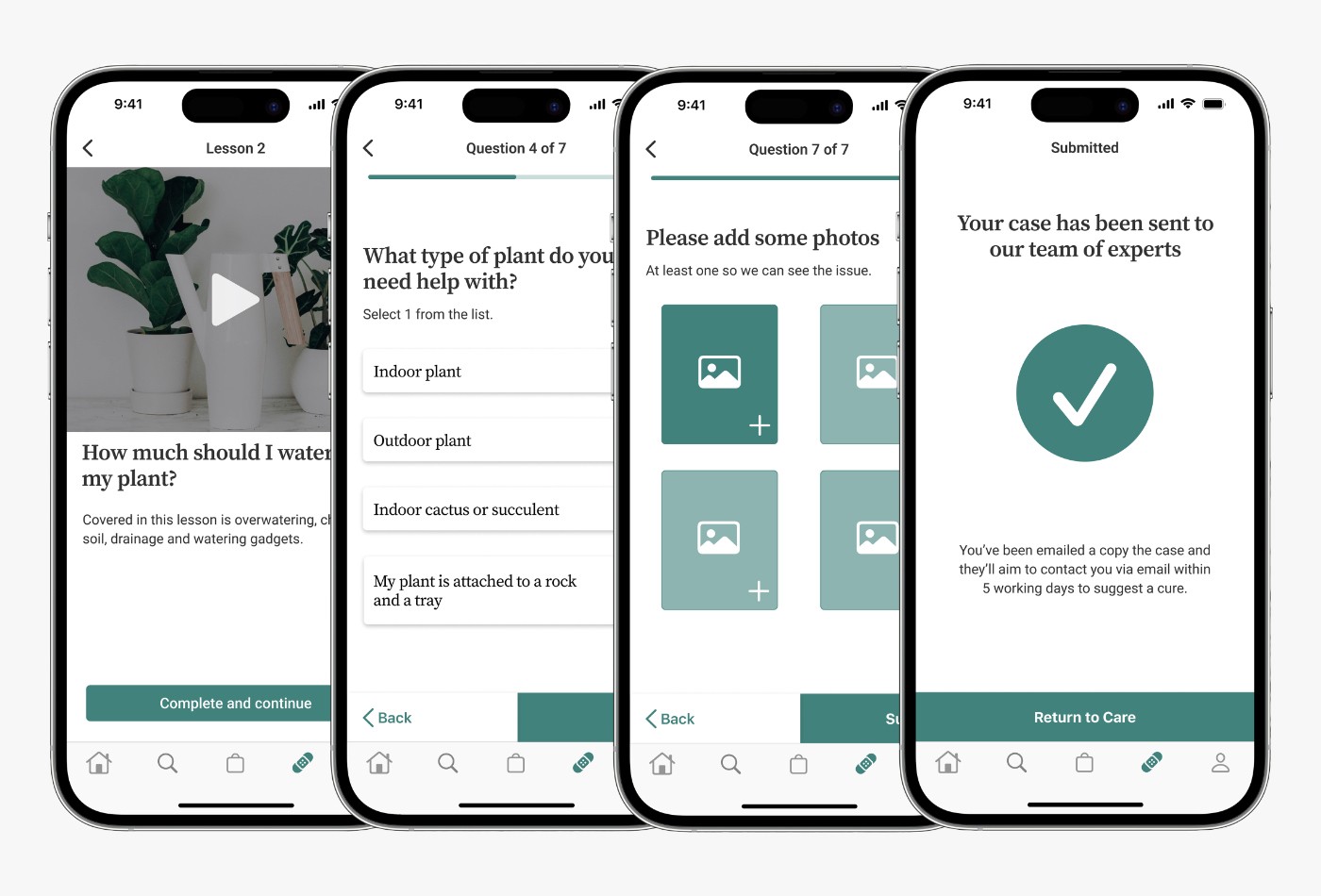
Image 1 of 3: Four high-fidelity screen mockups displayed on iPhone device frames, showing the final UI design for the app. The screens demonstrate the polished visual design with full colour, typography, imagery, and interface elements applied, illustrating how the app would appear to users in a finished state.
Image 2 of 3: Four high-fidelity screen mockups displayed on iPhone device frames, showing the final UI design for the app. The screens demonstrate the polished visual design with full colour, typography, imagery, and interface elements applied, illustrating how the app would appear to users in a finished state.
Image 3 of 3: Four high-fidelity screen mockups displayed on iPhone device frames, showing the final UI design for the app. The screens demonstrate the polished visual design with full colour, typography, imagery, and interface elements applied, illustrating how the app would appear to users in a finished state.

Steven Quayle 2025

Steven Quayle 2025

Steven Quayle 2025